Search
The Search API module in Drupal provides a flexible and powerful framework for creating and managing search indexes. One of its key features is the ability to boost specific fields and content types, improving the relevance of search results based on your site’s needs.
Search Engine - Solr
Section titled “Search Engine - Solr”Solr Search on the hosting platform involves a dedicated Solr server that handles the indexing and retrieval of content for Drupal sites. The server contains an index, which is a structured representation of the site’s content. Drupal interacts with this index by pushing (indexing) new or updated content and pulling (querying) items to provide search results.
Benefits of Using Solr
Section titled “Benefits of Using Solr”- Speed and Performance: Solr is optimized for high-speed search operations, ensuring quick retrieval of search results even for large datasets.
- Advanced Search Features: Includes capabilities like faceted search, which allows users to refine search results based on categories, and filtering.
- Spellchecker: Solr can provide spelling suggestions for search queries, improving the user experience by correcting typos and suggesting alternatives.
- Scalability: Solr is designed to handle large volumes of data and high traffic loads, making it suitable for websites of any size.
- Relevance: Uses advanced algorithms to rank search results based on relevance, improving the accuracy of search results.
By leveraging Solr, Drupal sites benefit from robust and efficient search functionality that enhances the user experience.
Boosting Fields
Section titled “Boosting Fields”Boosting specific fields allows you to prioritize certain types of content in search results. For example, boosting the title field ensures that content with matching titles appears higher in search results. Here’s how to configure field boosting:
-
Access Search API Configuration:
- Navigate to
/admin/config/search/search-api— Link.
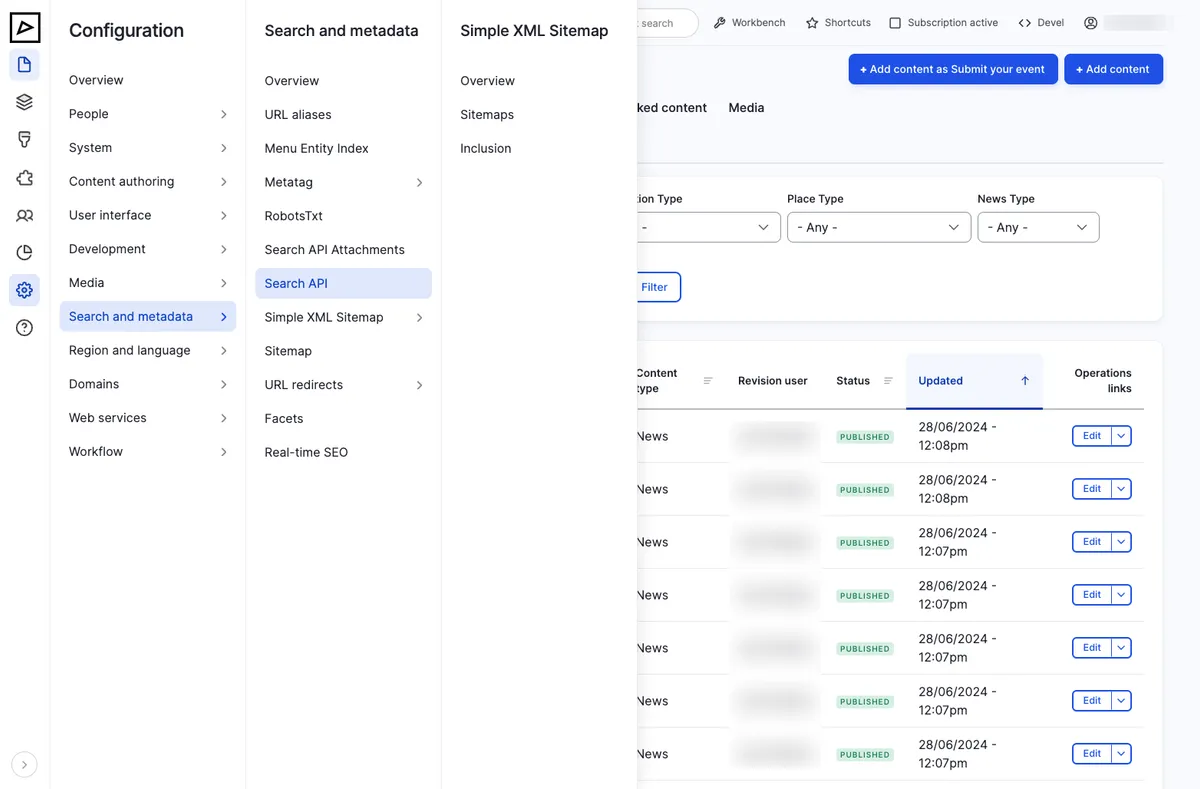
Search API Menu - Navigate to
-
Select Your Index:
- Choose the index you want to configure (typically the only one that’s enabled) and click Edit.
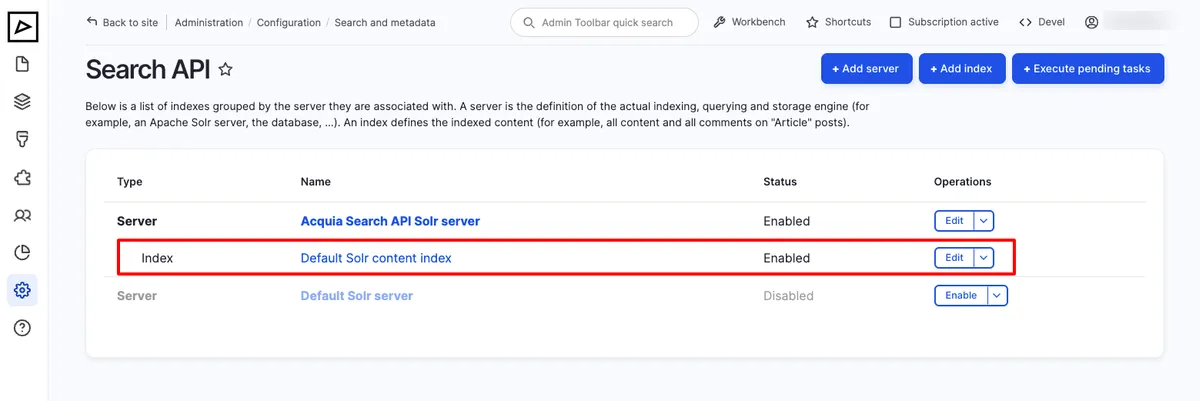
Search API Index -
Edit Fields:
- Under the “Fields” tab, you can add or edit fields for the index.
- For each field, you can set a boost value. Higher values give more importance to that field in search results.
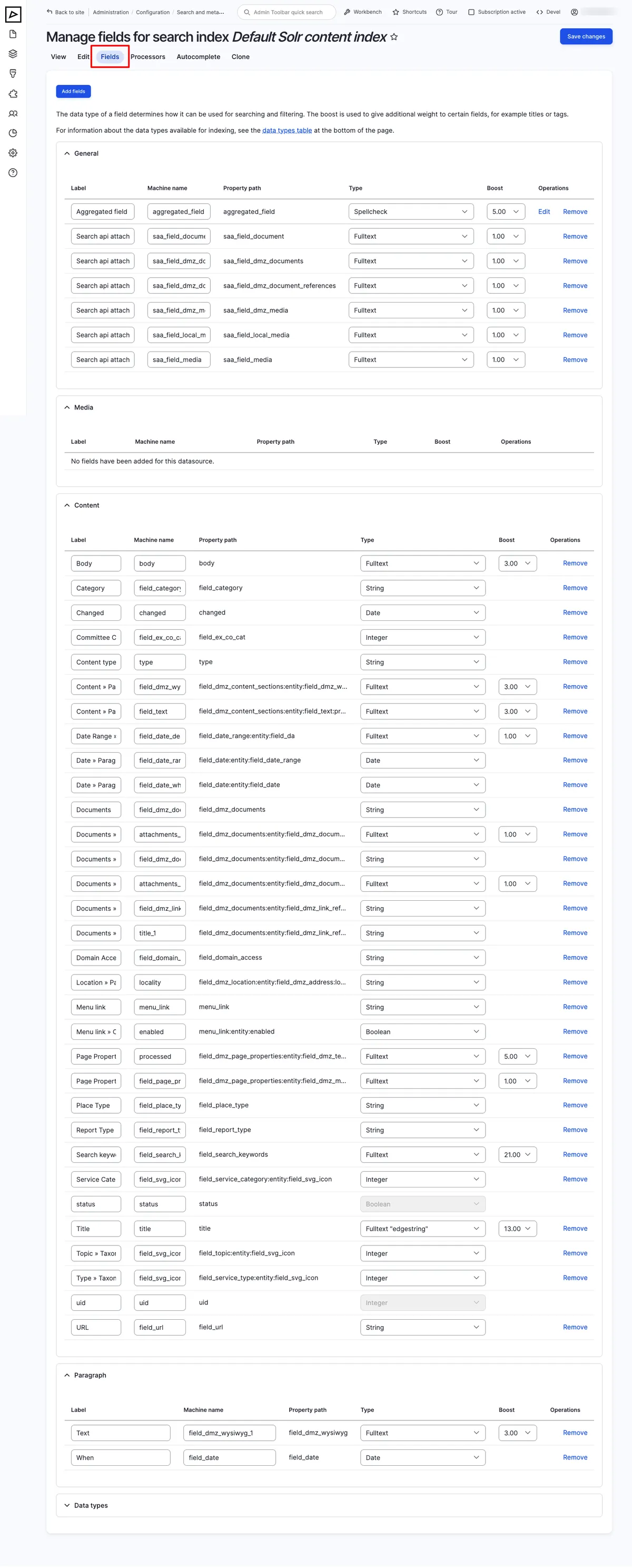
Search API Fields
By adjusting these values, you can fine-tune which parts of your content are most influential in search rankings.
On this page you also have an option to change field types. We strongly recommend not to change field types unless you know exactly what you are doing.
Boosting Content Types
Section titled “Boosting Content Types”Boosting content types allows you to give higher priority to certain types of content. For instance, you might want articles to appear higher in search results than basic pages. Here’s how to configure content type boosting:
-
Access Search API Configuration:
- Navigate to
/admin/config/search/search-api— Link.
- Navigate to
-
Select Your Index:
- Choose the index you want to configure (typically the only one that’s enabled) and click Edit.
-
Configure Processors:
- Go to the “Processors” tab. Add or edit a “Content Type Boost” processor.

Search API Processor -
Set Boost Values:
- Assign boost values to different content types. Higher values will prioritize those content types in search results.
By configuring these values, you can ensure that more relevant content types appear higher in search results, providing users with more useful and pertinent results.
Re-indexing
Section titled “Re-indexing”Re-indexing is necessary to ensure that your search index remains current with the latest content and configurations.
-
Automatic Re-indexing:
- Drupal’s cron system automatically re-indexes content at scheduled intervals. Ensure that cron is properly configured and running regularly to keep your search index up-to-date.
-
Manual Re-indexing:
- To manually trigger a re-index, navigate to your search index settings in Search API and select the “Index now” option. This is useful when making significant changes to your content or search configuration.
- Manual re-indexing should be done after altering boost settings, adding new fields, or making changes to content types to ensure these updates are reflected in search results.
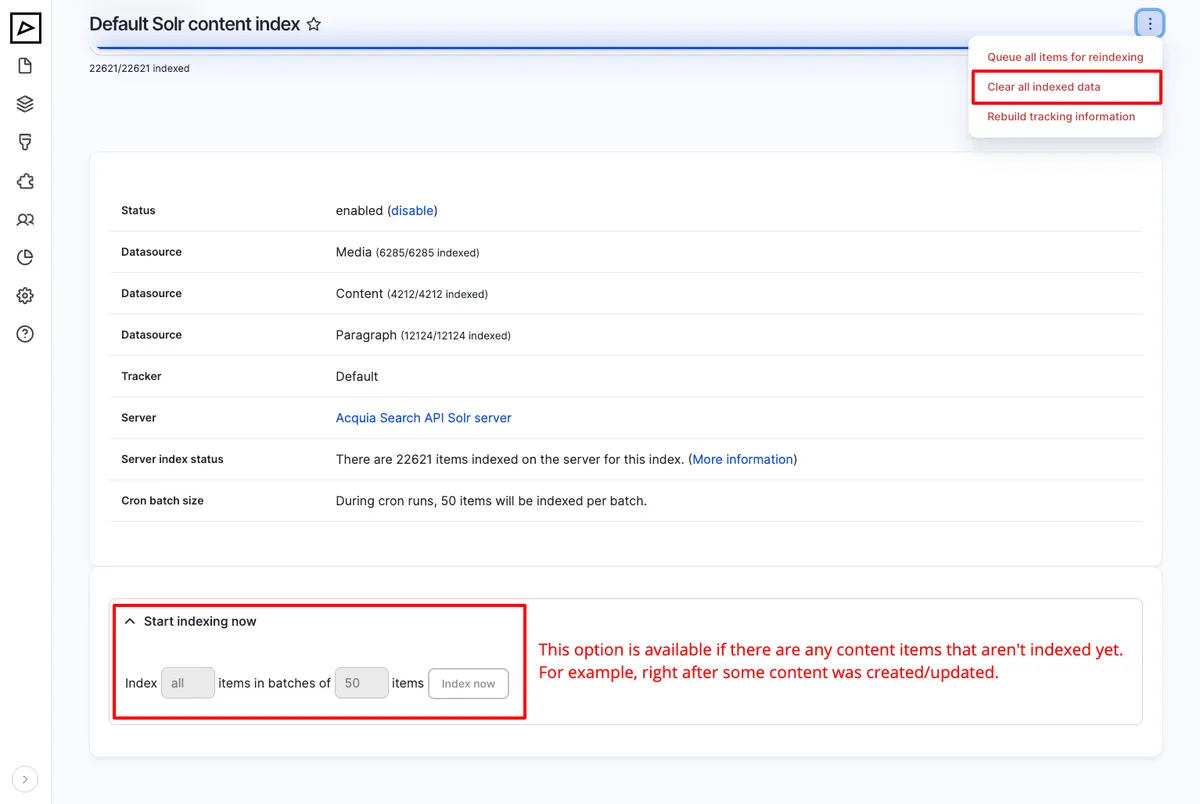
To force re-index data, click on Clear all index data, then Index now button will become available.
-
Queue all items for reindexing — items will be re-indexed in the background on the next cron run.
-
Rebuild tracking information — updates the system’s records of content changes, ensuring that recent modifications are accurately reflected in search results and other content-dependent functions. This is especially useful after significant content updates.
Excluding Items from Index
Section titled “Excluding Items from Index”You may exclude entire content types from being indexed or individual items.