Location
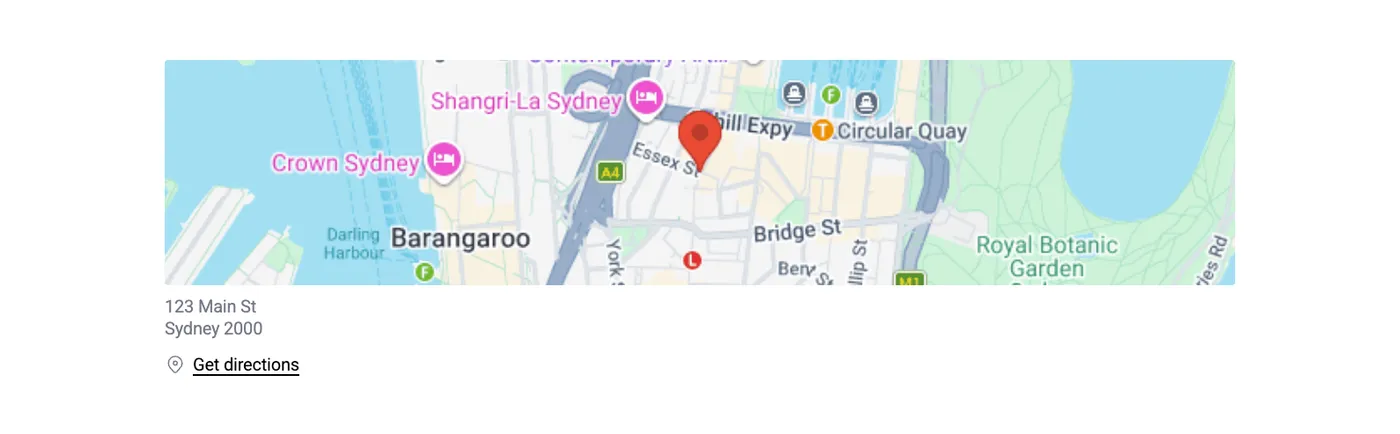
The Location component lets you add a physical location to your page using address autocomplete, precise coordinates, and a drag-and-drop marker on a map.
Intro tab
Section titled “Intro tab”Options in the Intro tab are covered in the Components section.
Location tab
Section titled “Location tab”Address
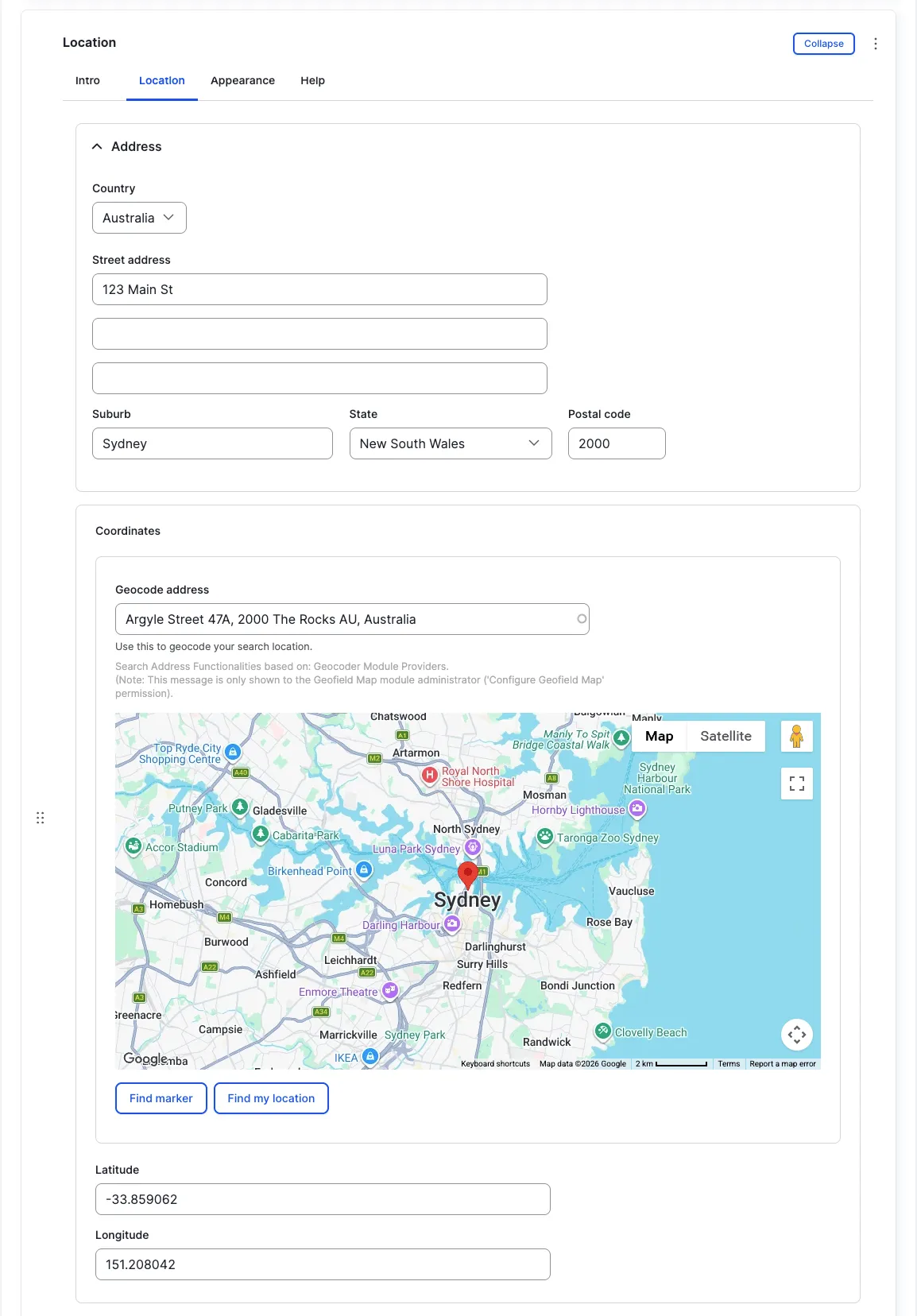
Section titled “Address”Enter the street address. This is used for display and geocoding.
Coordinates
Section titled “Coordinates”Geocode address
Section titled “Geocode address”Start typing an address in the address field, and the component suggests addresses based on your input using the Google Geocoder API. Click the address you want to use, and the component automatically fills in the coordinates and updates the map.
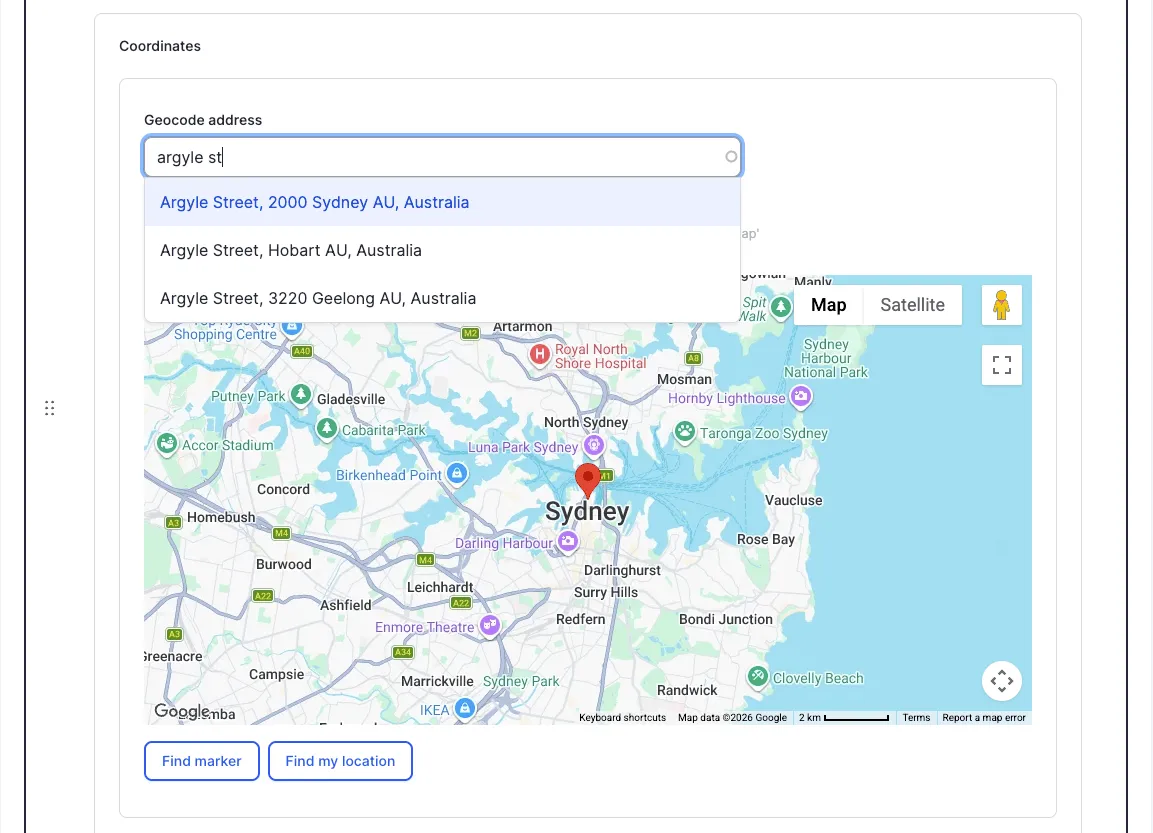
Coordinates field
Section titled “Coordinates field”You can also manually enter latitude and longitude. The map automatically updates to show the marker at the specified coordinates.
Any changes to coordinates or the map marker automatically update the Geocode address field.
Appearance Admin
Section titled “Appearance ”Options in the Appearance tab are covered in the Components section.
All fields (technical reference) — 14 fields
| Field name | Machine name | Type | Role |
|---|---|---|---|
| Address | field_dmz_address | address | Editor |
| Coordinates | field_dmz_coordinates | geofield | Admin |
| GeoJSON | field_dmz_geojson | text | Admin |
| Hidden | field_dmz_hidden | boolean | Editor |
| Buttons (legacy) | field_dmz_links | link | Deprecated |
| Background Media | field_dmz_media | reference (image, video, fotoweb) | Admin |
| More Link | field_dmz_more_link | link | Editor |
| Outer Background | field_dmz_palette_color_1 | list_string | Admin |
| Inner Background | field_dmz_palette_color_2 | list_string | Admin |
| Content Background | field_dmz_palette_color_3 | list_string | Admin |
| Section ID | field_dmz_section_id | string (max 255) | Admin |
| Introductory Text | field_dmz_text | text | Editor |
| Introductory Title | field_dmz_title | text | Editor |
| Title Heading Level | field_dmz_title_tag | list_string | Admin |