Links
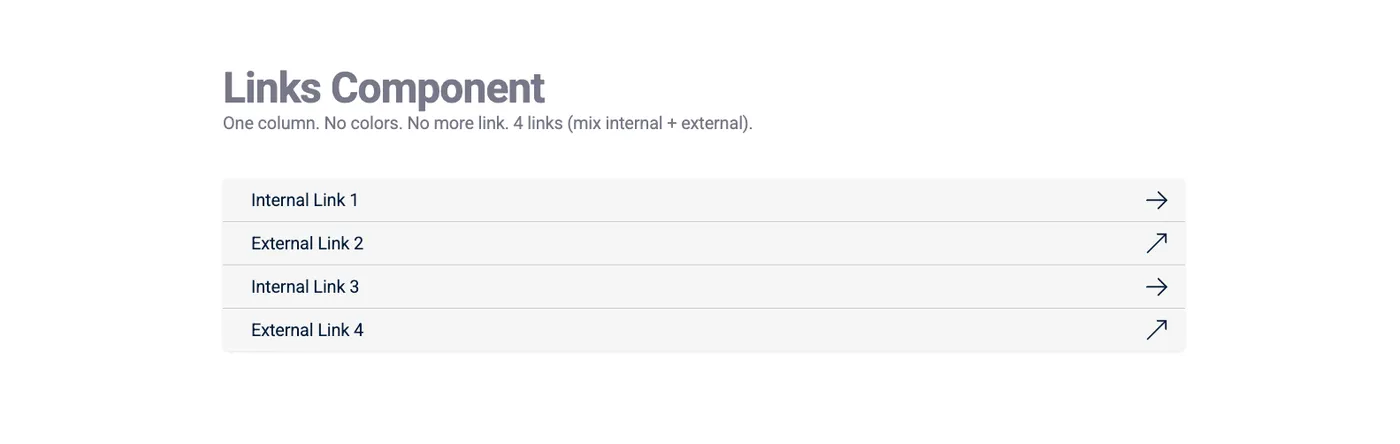
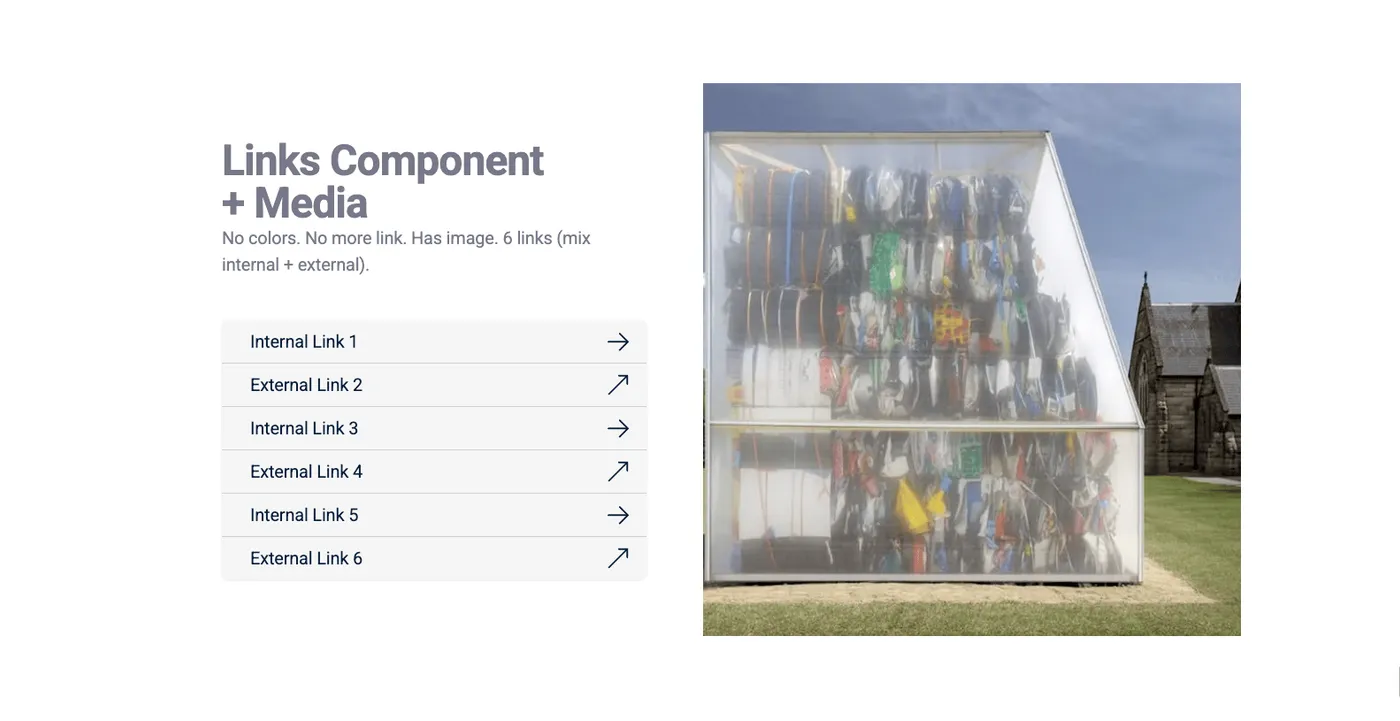
The Links component lets you add in-page, internal, or external links to your page. Links can be displayed as a list, a set of buttons, or cards.
Intro tab
Section titled “Intro tab”Options in the Intro tab are covered in the Components section.
Links tab
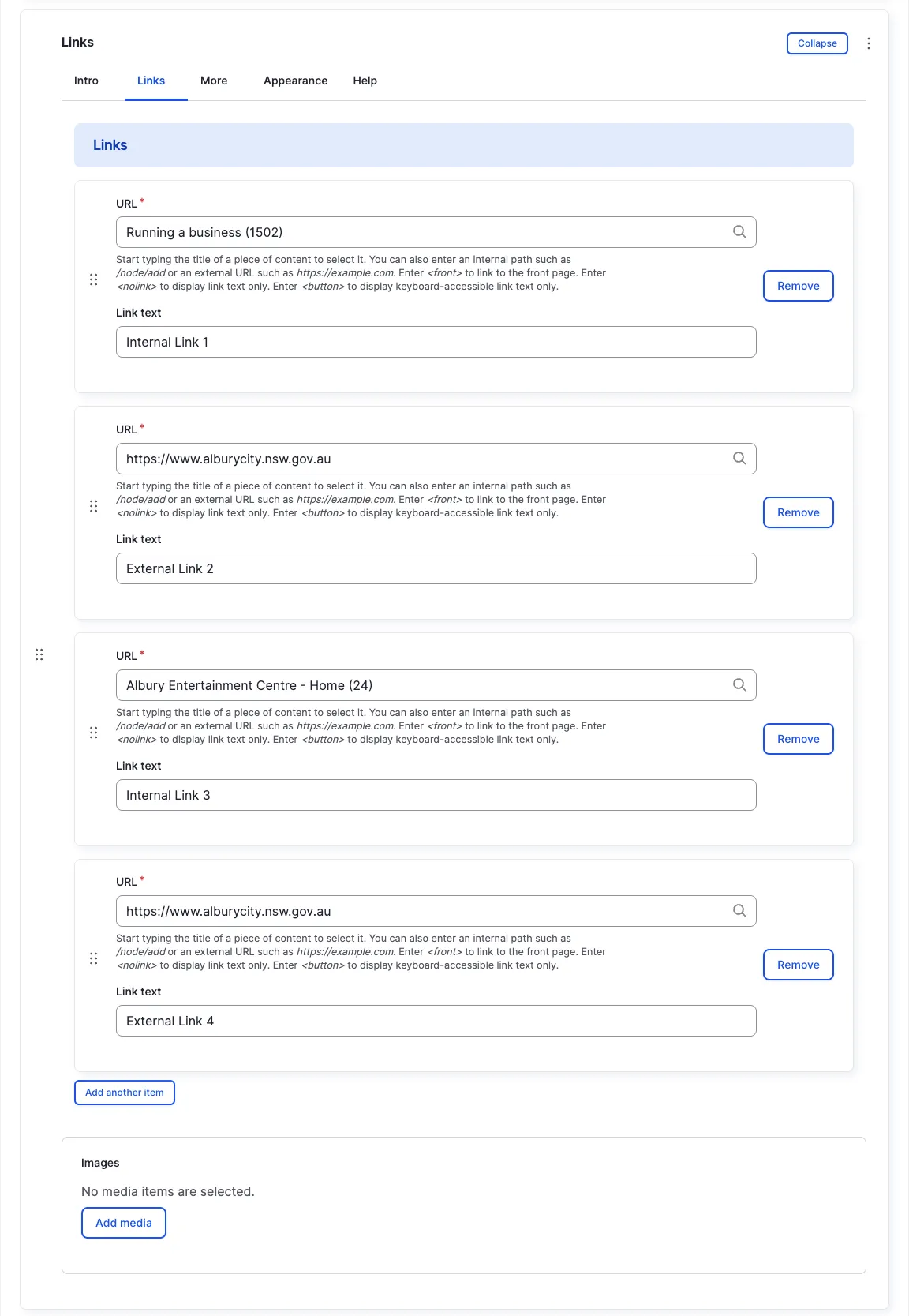
Section titled “Links tab”Start typing the name of the page you want to link to in the URL field — autocomplete will suggest pages based on your input. Click the page you want, and the URL field is filled in automatically.
You can also paste an absolute URL starting with http(s):// to link to
an external page.
Appearance Admin
Section titled “Appearance ”Link Display
Section titled “Link Display”Choose how the links should be displayed:
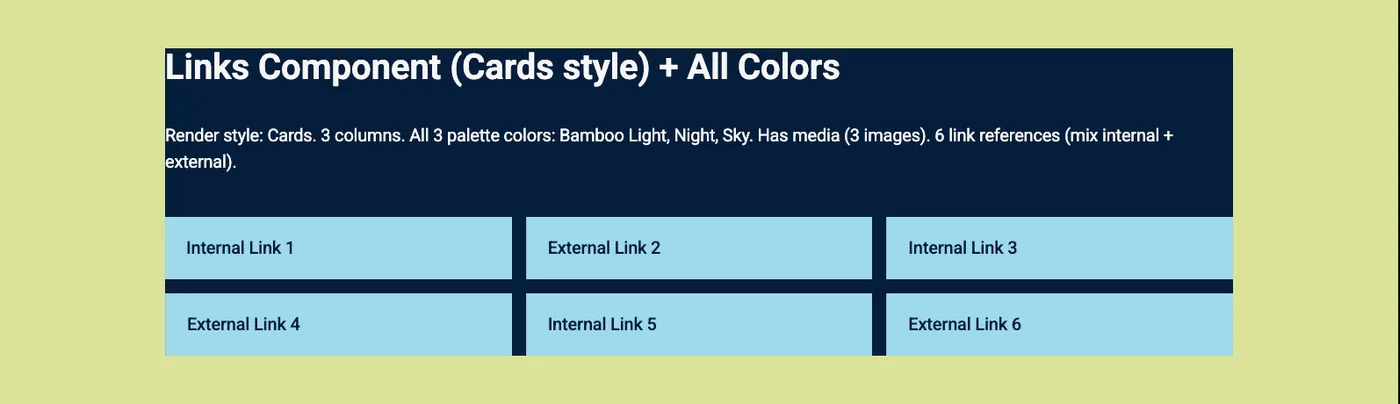
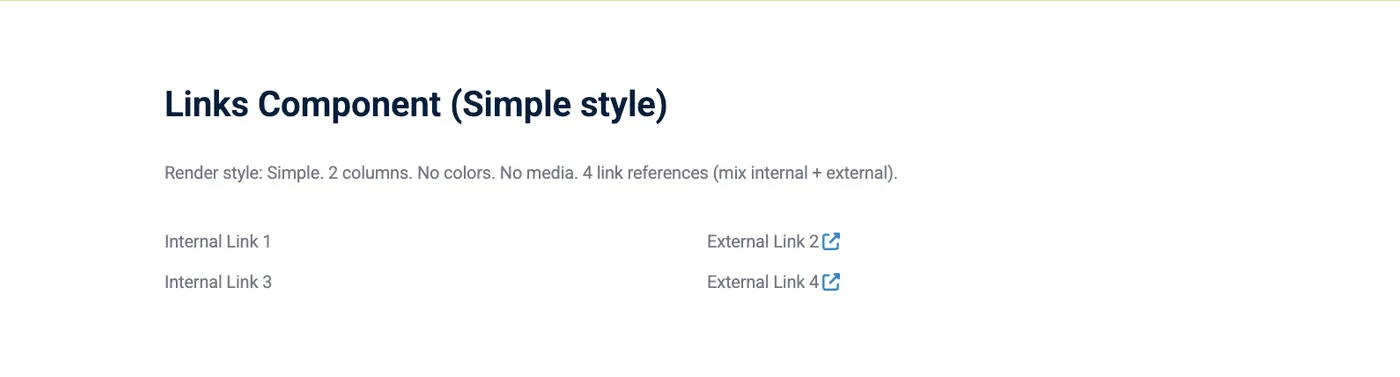
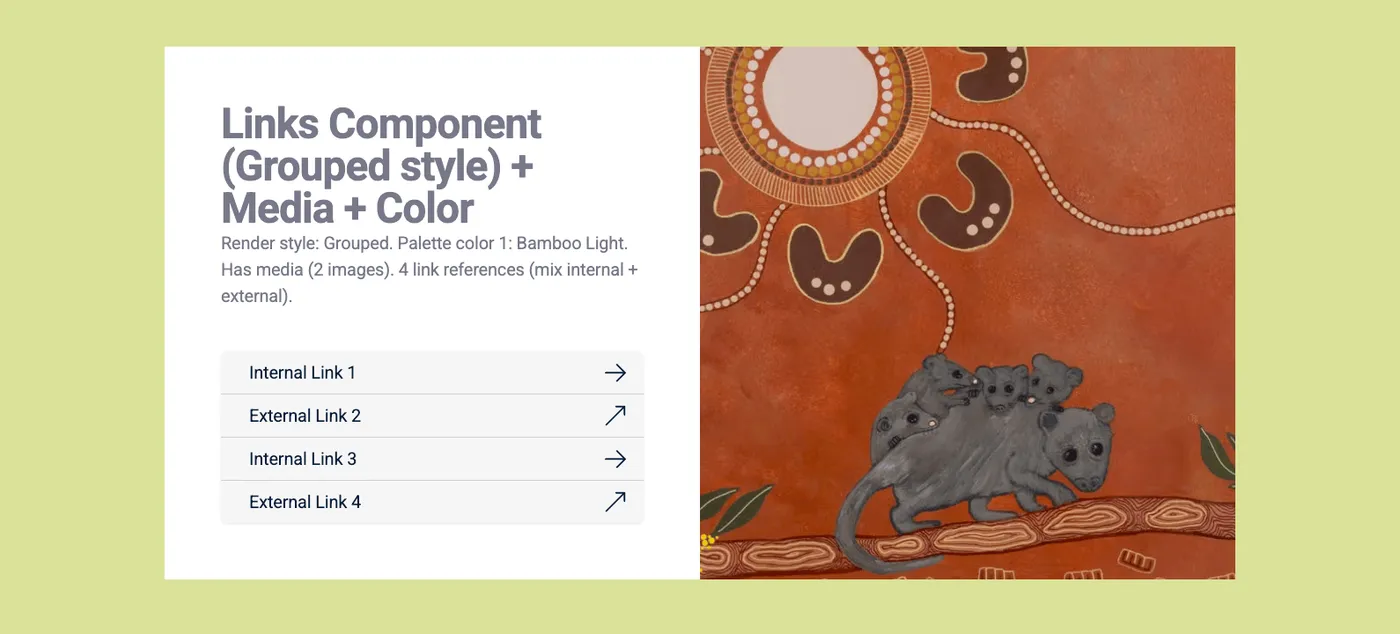
Columns
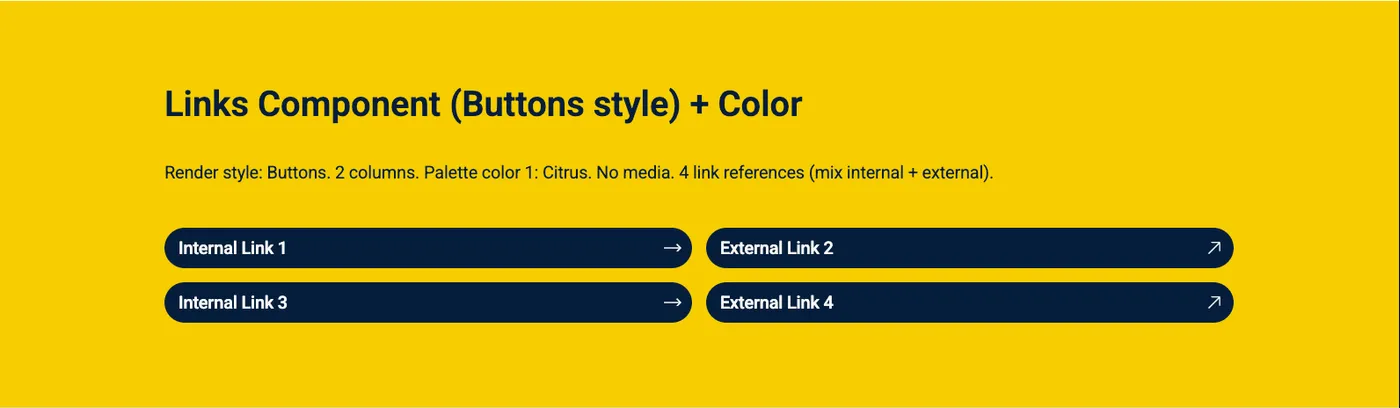
Section titled “Columns”Choose between two and three columns. Applicable to the Buttons, Cards and Simple display styles.
For example, if you choose Buttons and Three Columns, the links appear as three buttons in a row. Additional links wrap to the next row.
Other options in the Appearance tab are covered in the Components section.
All fields (technical reference) — 15 fields
| Field name | Machine name | Type | Role |
|---|---|---|---|
| Columns | field_dmz_column_count | list_string | Admin |
| Hidden | field_dmz_hidden | boolean | Editor |
| Buttons (legacy) | field_dmz_links | link | Deprecated |
| Link References | field_dmz_link_references | link | Editor |
| Background Media | field_dmz_media | reference (image, video, fotoweb) | Admin |
| More Link | field_dmz_more_link | link | Editor |
| Outer Background | field_dmz_palette_color_1 | list_string | Admin |
| Inner Background | field_dmz_palette_color_2 | list_string | Admin |
| Content Background | field_dmz_palette_color_3 | list_string | Admin |
| Photos | field_dmz_photos | reference (image, fotoweb) | Editor |
| Link Display | field_dmz_render_options_links | list_string | Editor |
| Section ID | field_dmz_section_id | string (max 255) | Admin |
| Introductory Text | field_dmz_text | text | Editor |
| Introductory Title | field_dmz_title | text | Editor |
| Title Heading Level | field_dmz_title_tag | list_string | Admin |